How to Create a Content Lock with Sub2unlock (Step-by-Step Guide)
At some point, most creators realize that giving everything away freely isn’t sustainable. You still want reach, visibility, and growth—but you also want some control over how your content is accessed.
Sub2 Unlock approaches this problem practically. Instead of asking users to pay or sign up, it asks them to take simple social actions they already understand: visiting a channel, following an account, or joining a community. Once they do, the content unlocks automatically.
In this guide, we’ll walk through creating a lock using the actual Sub2 Unlock interface, explain each field, and share small decisions that make a big difference in results.
The “Create Your Lock” Screen
When you open the lock creation page, you’ll see a clean, dark-themed form titled Create Your Lock, with a short note explaining that you can add up to five social platforms.
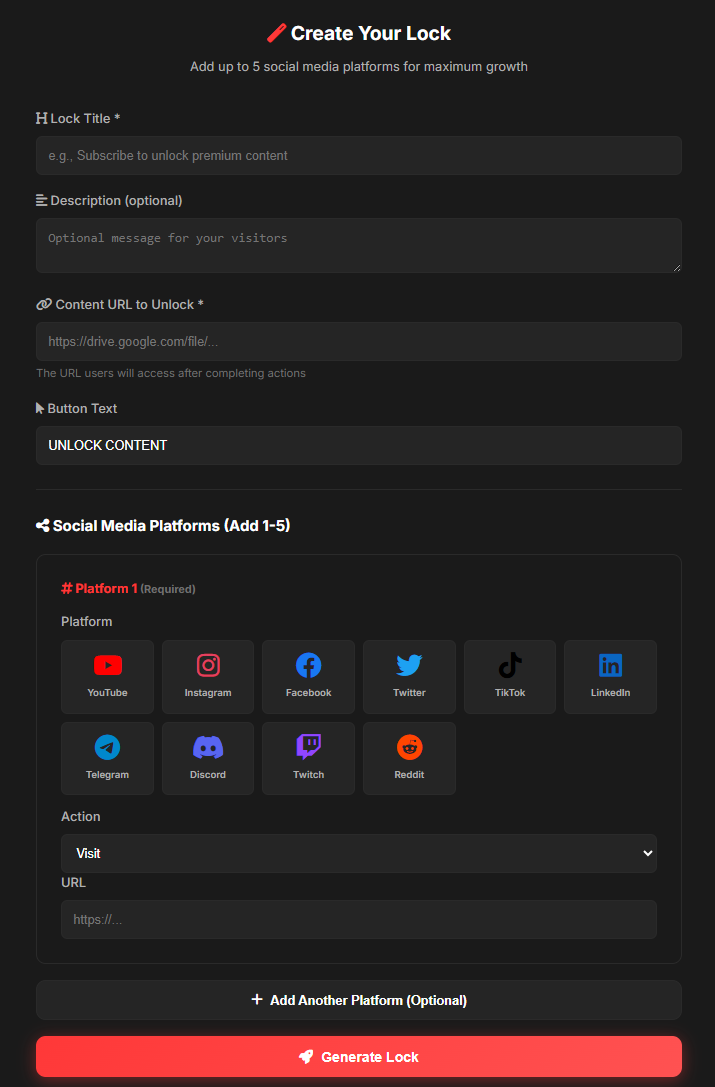
Everything happens on this single screen, which makes the process straightforward once you understand each section.
Lock Title
The Lock Title is the headline your visitors see first. Example placeholder:
e.g., Subscribe to unlock premium content
It’s not just cosmetic. A good lock title clearly answers two questions:
- What action is required?
- What benefit the user gets afterward?
Good examples:
- “Subscribe to Unlock the Full File”
- “Follow to Access the Private Download”
- “Join Our Channel to Continue”
Clear titles reduce hesitation and increase completion rates.
Description (Optional, but Worth Using)
Below the title is the Description field. While optional, it humanizes the experience. A short sentence can:
- Reassure visitors that the unlock is instant
- Explain why the content is gated
- Reduce confusion or mistrust
Example: “This resource is shared with our community members only. Complete the step below to unlock access instantly.”
Content URL to Unlock
This is the most important technical field.
Here, paste the link users will access after completing the required actions. Examples include:
- Google Drive files or folders
- Private download links
- Hidden web pages
- Members-only resources
Example: https://drive.google.com/file/...
Tip: Always test the URL in an incognito window to ensure it opens correctly.
Button Text
The default button text is UNLOCK CONTENT. You can customize this to match your tone:
- “Unlock Now”
- “Access the File”
- “Continue”
Short, direct labels tend to convert better than overly creative wording.
Social Media Platforms (Core Section)
This is where Sub2 Unlock does its work.
You can add 1–5 platforms, but at least one is required.
Platform 1 (Required)
Each platform block has three key elements:
- Platform: Select the social network visually (YouTube, Instagram, Facebook, Twitter/X, TikTok, LinkedIn, Telegram, Discord, Twitch, Reddit).
- Action: Typically set to “Visit” — the user must visit the provided link to unlock content.
- URL: Paste the exact link related to the selected platform. Example links:
- https://youtube.com/@yourchannel
- https://instagram.com/yourpage
- https://t.me/yourgroup
Accuracy matters. A broken link breaks trust.
Adding More Platforms (Optional)
You can add up to five platforms.
Guidelines:
- 1–2 platforms: higher completion rate
- 3–5 platforms: stronger growth, but fewer completions
High-value content justifies multiple steps.
Generating the Lock
Once all fields are filled, click Generate Lock.
This generates a unique lock link to share in:
- Video descriptions
- Landing pages
- Blog posts
- Social bios
What Users Experience
Visitors follow a simple flow:
- Open the lock link
- See your title and description
- Complete required social actions
- Content unlocks automatically
No account creation, no payment, no extra steps.
Practical Tips From Real Use
- Be transparent about why content is locked.
- Match the platform to the content type (video → YouTube, community → Telegram/Discord).
- Don’t overload steps unless the content genuinely deserves it.
- Always test the full flow before sharing publicly.
Small details noticeably affect user trust and completion rates.
Final Thoughts
Sub2 Unlock doesn’t feel like a hard gate. It’s a fair exchange: users get access to valuable content, and creators get meaningful engagement. When set up thoughtfully, it protects content without frustrating the audience.
That balance is why tools like this work—efficiently, quietly, and without unnecessary complexity.